If you’re a member of the Philippine National Police (PNP) looking to access the Police Open Academy (POA) portal, this guide walks you through every step—from logging in for the first time to setting up two-factor authentication and completing your personnel profile.
Whether you’re a newly registered PNP personnel or returning to continue your online learning, this article explains the login process, common issues, security requirements, and best practices for accessing the POA portal safely.
Related: PNP PES
What Is the PNP Police Open Academy (POA) Portal?
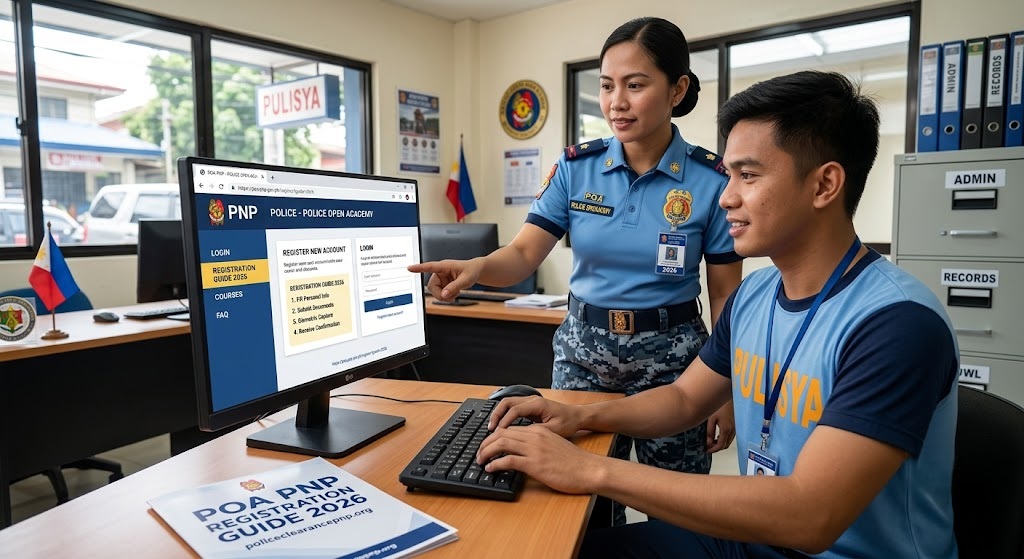
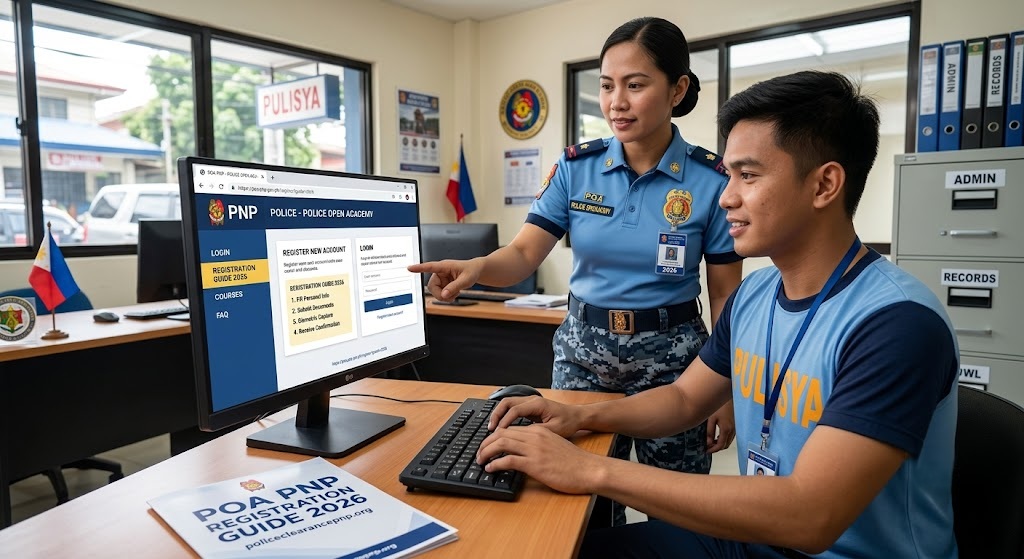
The Police Open Academy (POA) is the official online learning platform of the Philippine National Police. It enables PNP personnel to complete mandatory training, professional development programs, online courses, and learning assessments through a secure web-based system.
The platform supports continuous learning by allowing officers and personnel to access training materials anytime using their official credentials.
Most Related: CIRAS PNP login
Key Features of the POA Portal
- Secure online access for authorized PNP personnel
- Digital training and professional development courses
- Personnel profile management
- Learning progress tracking
- Course completion monitoring
- Multi-factor authentication (MFA) for enhanced account security
PNP POA Portal Login Requirements
Before accessing the portal, make sure you have the following:
- Official PNP Email System (PES) email address
- Default or updated portal password
- Smartphone with the Google Authenticator app installed
- Stable internet connection
- Updated web browser
Here is full guide about: Police Clearance
Having these requirements ready helps ensure a smooth login process.
How to Login to the PNP POA Portal
Follow these steps carefully.
Step 1: Visit the Official POA Portal
Open your preferred web browser and navigate to the official Police Open Academy Portal using the official PNP website or the portal link provided by your unit or training administrator.
Always verify that you are using the official website before entering your credentials.
Step 2: Enter Your Login Credentials
Use the following information:
- Username: Your PNP Email System (PES) email address
- Password: Your default payslip account number (for first-time users)
If you have already changed your password, use your updated password instead.
Step 3: Complete Security Verification
For account protection, the portal requires multi-factor authentication.
You will be prompted to:
- Install the Google Authenticator app on your smartphone.
- Scan the QR code displayed on the login page.
- Enter the generated six-digit verification code.
- Complete the verification process.
This extra security layer helps protect your account from unauthorized access.
First-Time Login Process
If this is your first time signing in, additional setup is required.
Change Your Temporary Password
Immediately after your first successful login, the system will ask you to create a new password.
Choose a password that:
- Contains uppercase and lowercase letters
- Includes numbers
- Uses special characters when allowed
- Is unique and difficult to guess
Avoid using personal information such as birthdays or badge numbers.
More: How to Check for Outstanding Warrants Online
Log In Again
After changing your password:
- Return to the login page.
- Enter your updated password.
- Complete Google Authenticator verification again if prompted.
Your account setup will then continue.
Complete Your Personnel Profile
After signing in with your new credentials, complete all mandatory profile information.
Depending on your assigned role, the portal may request:
- Personal information
- Unit or office assignment
- Rank
- Contact details
- Training information
- Employment details
Providing accurate information helps ensure proper enrollment in required courses and training programs.
Why Google Authenticator Is Required
The Police Open Academy uses Google Authenticator to strengthen account security.
Benefits include:
- Additional protection against unauthorized logins
- Reduced risk of compromised credentials
- Secure access even if your password becomes known to others
- Compliance with modern cybersecurity practices
Never share your verification code with anyone.
How to Reset Your POA Portal Password
If you cannot remember your password:
- Visit the login page.
- Select the password recovery option if available.
- Follow the account verification instructions.
- If self-service recovery is unavailable, contact your designated PNP IT administrator or training office for assistance.
For security reasons, account ownership may need to be verified before access is restored.
Common PNP POA Login Problems and Solutions
Incorrect Username or Password
Double-check:
- Your PNP Email System address
- Password spelling
- Caps Lock status
- Keyboard language settings
If necessary, reset your password through the approved recovery process.
Google Authenticator Code Not Working
Possible causes include:
- Incorrect device time
- Expired verification code
- Wrong Authenticator account selected
Synchronize your phone’s date and time automatically before generating a new code.
Unable to Access the Portal
If the website does not load:
- Refresh the page.
- Try another browser.
- Clear browser cache.
- Check your internet connection.
- Try again later if scheduled maintenance is in progress.
Best Security Practices for PNP Personnel
Protecting your account is your responsibility.
Follow these recommendations:
- Never share your login credentials.
- Keep your Google Authenticator device secure.
- Change your password periodically.
- Log out after every session.
- Avoid logging in using public computers.
- Do not save passwords on shared devices.
- Report suspicious account activity immediately.
These habits significantly reduce the risk of unauthorized access.
Benefits of Using the Police Open Academy Portal
The POA platform supports continuous professional learning throughout a PNP member’s career.
Benefits include:
- Convenient online learning
- Flexible course completion
- Faster access to required training
- Digital record management
- Improved professional development
- Centralized learning resources
The platform helps personnel stay updated with evolving policing standards and training requirements.
Frequently Asked Questions
What username should I use to log in?
Use your official PNP Email System (PES) email address.
What is the default password for first-time users?
New users generally use their default payslip account number as the temporary password unless different instructions have been issued by their unit.
Do I need Google Authenticator?
Yes. The portal requires multi-factor authentication using Google Authenticator for enhanced security.
What happens after my first login?
You will be required to change your temporary password before continuing.
Why do I need to complete my profile?
Completing your profile ensures accurate enrollment, training assignments, and proper personnel records within the system.
Can I access the portal on mobile devices?
Yes. The portal can generally be accessed through modern mobile browsers, although some training activities may provide a better experience on a desktop or laptop.
Final Thoughts
The PNP Police Open Academy Portal is an essential platform for online learning, professional development, and mandatory training within the Philippine National Police. By following the correct login procedure, enabling Google Authenticator, changing your temporary password, and completing your personnel profile, you can access the system securely and avoid common login issues.
Always use the official portal, keep your login credentials confidential, and update your account information whenever necessary. Following these best practices ensures uninterrupted access to your assigned training and helps maintain the security of your official PNP account.