
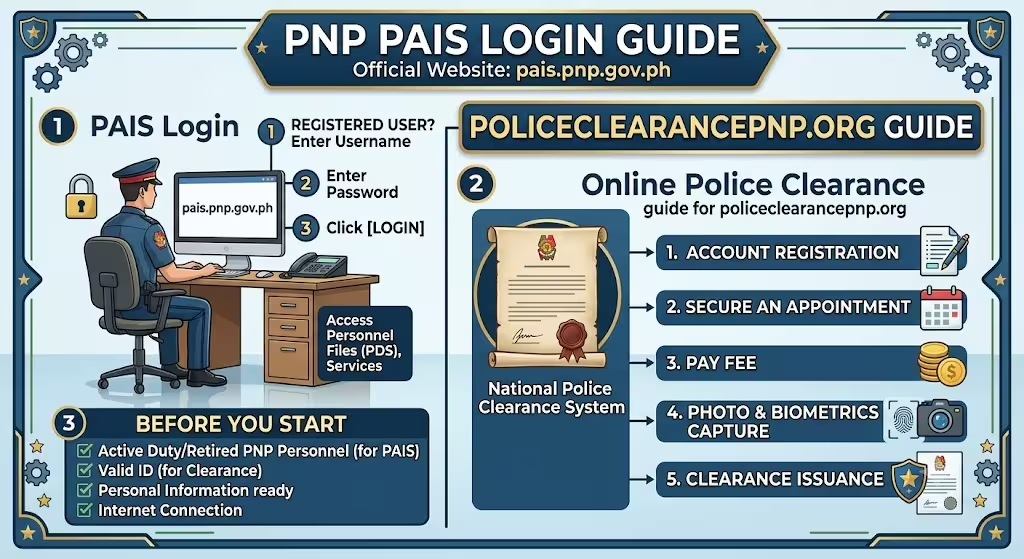
The Police Administration Information System (PAIS) is an official digital platform of the Philippine National Police (PNP) that supports the management of personnel, administrative, and organizational information. Through pais.pnp.gov.ph, authorized PNP personnel can securely access internal services, update records, and perform administrative tasks based on their assigned roles.
If you’re searching for the correct PAIS login process, troubleshooting tips, or password recovery instructions, this guide covers everything you need to know. It also explains who can use the system, common login issues, and the best security practices for protecting your account.
Important: The PAIS portal is an internal PNP system. It is intended only for authorized personnel with valid credentials. Members of the public cannot create or access PAIS accounts.
PNP PAIS Login: Quick Overview
| Feature | Details |
|---|---|
| Portal Name | Police Administration Information System (PAIS) |
| Official Website | https://pais.pnp.gov.ph |
| Organization | Philippine National Police (PNP) |
| Intended Users | Authorized PNP personnel |
| Login Method | Official username and password |
| Access Type | Secure web-based portal |
| Main Purpose | Personnel and administrative information management |
What Is the PNP PAIS Portal?
The Police Administration Information System (PAIS) is an internal web-based platform developed to help the Philippine National Police modernize administrative operations. Instead of relying on paper-based workflows, PAIS centralizes important organizational information in a secure digital environment.
The system enables authorized users to access records, perform administrative functions, and manage information more efficiently while supporting the PNP’s digital transformation initiatives.
Key Features of the PAIS Portal
Depending on a user’s assigned role and permissions, PAIS may provide access to:
- Personnel information management
- Administrative records
- Organizational data
- Internal reporting tools
- User account management
- Office-level administrative services
- Role-based access to authorized modules
The features available will vary based on the user’s responsibilities within the organization.
Who Can Access pais.pnp.gov.ph?
Access to the PAIS portal is restricted to authorized users.
Eligible users typically include:
- Uniformed PNP personnel
- Administrative staff
- Human resource personnel
- Designated office administrators
- Information technology personnel
- Other authorized users approved by the Philippine National Police
All accounts are managed according to official PNP policies and access controls.
Requirements Before Logging In
Before accessing the portal, make sure you have:
- Your official PAIS username
- Your assigned password
- A reliable internet connection
- A supported and up-to-date web browser
- Any additional authentication required by your office
Using the latest version of your browser helps improve compatibility and security.
How to Log In to the PNP PAIS Portal
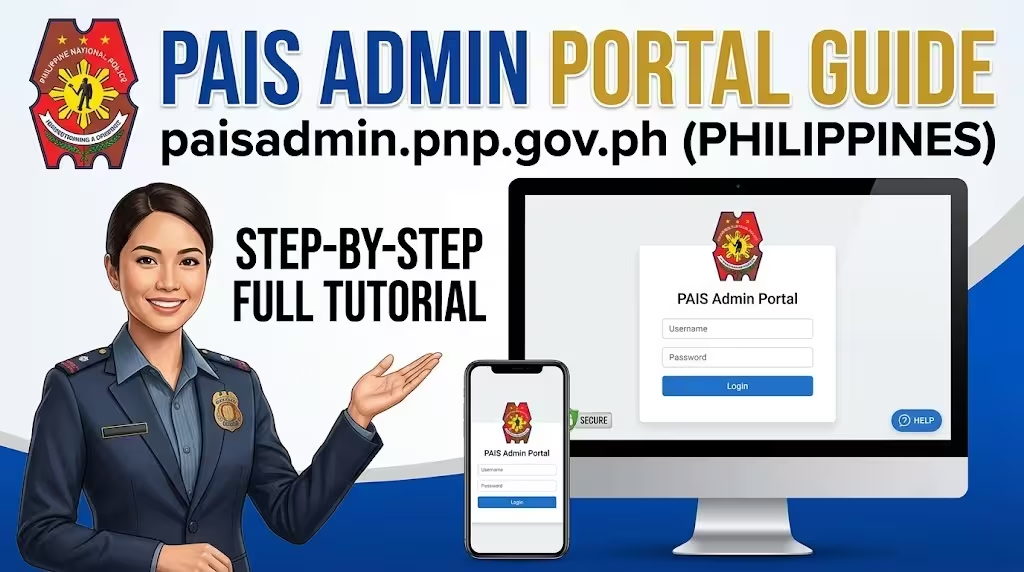
Follow these steps to sign in securely.
Step 1: Visit the Official PAIS Website
Open your web browser and go to:
Before entering your credentials, confirm that the website address is correct and begins with https:// to help protect against phishing attempts.
Step 2: Enter Your Username
Type the username issued by the Philippine National Police.
Do not use personal email addresses unless specifically instructed by your office.
Step 3: Enter Your Password
Carefully enter your password.
Passwords are case-sensitive, so check your keyboard settings before signing in.
Step 4: Complete Any Required Authentication
Depending on your office’s security configuration, you may need to complete an additional verification step before accessing the portal.
Follow the instructions displayed on the screen.
Step 5: Access Your Dashboard
After successful authentication, you’ll be redirected to your PAIS dashboard, where you can access the modules and administrative functions assigned to your account.
First-Time Login Guide
If you’re using a newly created account, you may need to complete an initial setup.
Change Your Temporary Password
Create a secure password using a combination of:
- Uppercase letters
- Lowercase letters
- Numbers
- Special characters where permitted
Avoid using birthdays, badge numbers, or other easily guessed information.
Verify Your Account Information
Review your profile details, assigned office, and other account information to ensure everything is accurate.
Complete Any Required Security Setup
Your office may require additional account verification or security settings during your first login.
How to Reset Your PAIS Password
If you forget your password, use only official recovery procedures.
The recovery process may include:
- Using the password reset option if available.
- Contacting your designated PAIS administrator or IT support.
- Verifying your identity.
- Receiving temporary credentials.
- Creating a new password during your next login.
Never share your credentials with anyone or use unofficial password recovery services.
Common PAIS Login Problems and Solutions
Incorrect Username or Password
Check the following:
- Username spelling
- Password accuracy
- Caps Lock status
- Keyboard language
If you still cannot log in, contact your system administrator.
Account Locked
Several unsuccessful login attempts may temporarily lock your account for security reasons.
Wait for the lockout period or request assistance from your administrator.
Website Not Opening
If the portal fails to load:
- Refresh the page.
- Clear your browser cache.
- Try another supported browser.
- Verify your internet connection.
- Check whether scheduled maintenance has been announced by your office.
Browser Compatibility Issues
For the best experience:
- Use an updated browser.
- Enable JavaScript if required.
- Avoid outdated or unsupported browser versions.
Security Tips for PAIS Users
Since PAIS contains sensitive personnel and administrative information, protecting your account is essential.
Keep Your Credentials Private
Never disclose your username or password to coworkers, friends, or third parties.
Use a Strong Password
A secure password should be unique and difficult to guess.
Sign Out After Every Session
Always log out when you’ve finished using the system, especially on shared or government-issued computers.
Avoid Public Networks
Whenever possible, access PAIS from trusted networks and devices to reduce security risks.
Watch for Phishing Attempts
Only log in through the official pais.pnp.gov.ph website. Ignore emails or messages asking for your login credentials unless they come through verified PNP channels.
Benefits of the PNP PAIS Portal
The PAIS platform supports more efficient administrative operations throughout the Philippine National Police.
Faster Administrative Processes
Digital workflows reduce paperwork and improve operational efficiency.
Centralized Information Management
Authorized users can access and manage administrative records through one secure platform.
Better Data Accuracy
Electronic records help reduce manual entry errors and improve consistency.
Secure Access Control
Role-based permissions help ensure that users can access only the information relevant to their duties.
Frequently Asked Questions
What is the PNP PAIS Portal?
The Police Administration Information System (PAIS) is an internal digital platform used by the Philippine National Police to manage personnel and administrative information.
Who can access pais.pnp.gov.ph?
Only authorized PNP personnel with valid login credentials can access the portal.
Can civilians register for a PAIS account?
No. PAIS is an internal government system and is not available for public registration.
What should I do if I forget my PAIS password?
Follow your organization’s approved password recovery process or contact your designated PAIS administrator.
Can I use PAIS outside the office?
Availability depends on your office’s security policies and network configuration. Follow official PNP guidance regarding remote access.
Best Practices for Smooth Portal Access
To reduce login issues and protect your account:
- Bookmark the official PAIS website.
- Update your password whenever required.
- Keep your browser up to date.
- Avoid sharing login credentials.
- Report suspicious account activity immediately.
- Follow all cybersecurity policies issued by the Philippine National Police.
Final Thoughts
The PNP Police Administration Information System (PAIS) is an essential platform that supports the Philippine National Police’s administrative operations through secure digital services. By understanding the login process, using only the official pais.pnp.gov.ph portal, and following recommended security practices, authorized personnel can access the system efficiently while helping protect sensitive organizational information.
If you encounter login issues that cannot be resolved through standard troubleshooting, contact your designated PAIS administrator or official PNP IT support for assistance.






Pais logged in!